Travelport Smartpoint HPM Service Utility Install Instructions
|
|
|
IMPORTANT NOTE: The Microsoft .NET 4.0 Framework needs to be installed before you run the HPM Service Utility.
http://www.microsoft.com/en-us/download/details.aspx?id=17718
|
The HPM Service Utility should ONLY be run if you have HPM configured as a Windows Service
and the Windows Operating System (OS) environment is a 64 Bit Platform.
HPM Customers may print a copy of the download instructions simply by
selecting File, and then Print in the Explorer Toolbar. You may begin the
download process by clicking on the link (Download Now) at either the top or
the bottom of this section, then respond as directed in the instructions.
Travelport recommends that all third party applications (except Internet
Explorer) be closed during the download process.
|
1. Click on Run on the Internet Explorer - Security Warning.

|
2. Select Next

|
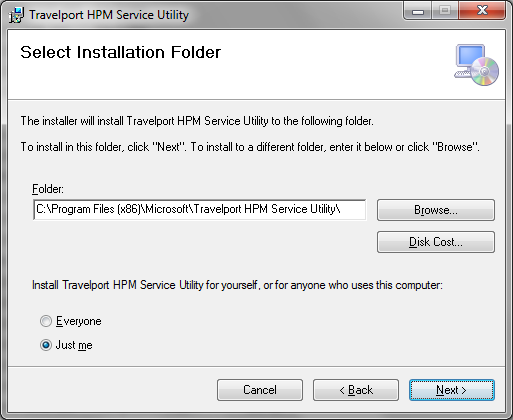
3. Select appropriate install for single user machine or multi-user machine.
|
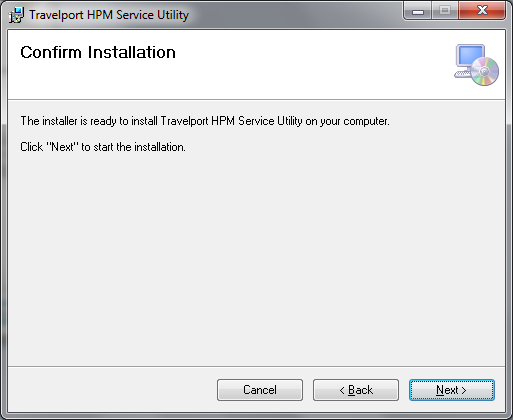
4. Confirm Installation by selecting “Next”. The installation could take
several minutes, there is initial configuration checking being processed. Do
Not interrupt the installation process, please allow several minutes for the
installation to process.
|
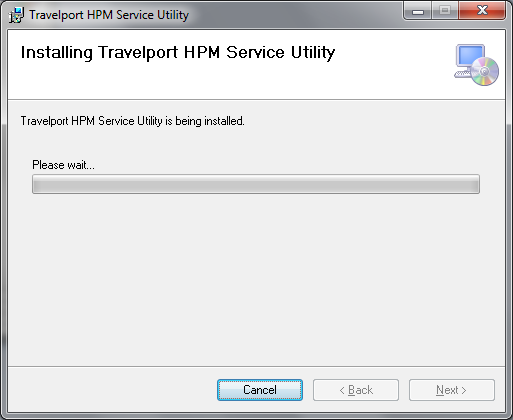
5. Do not interrupt the installation process. Premature termination may cause
product performance issues if installation process is not fully completed.
|
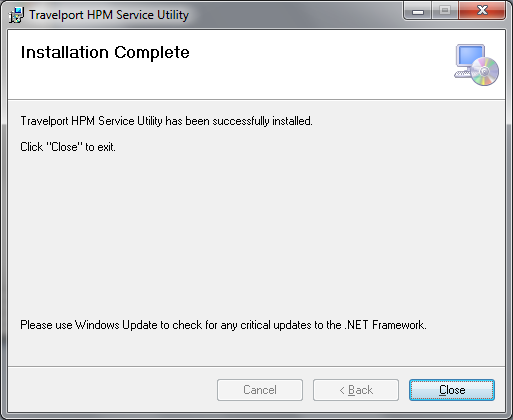
6. Click Close to complete installation.
|
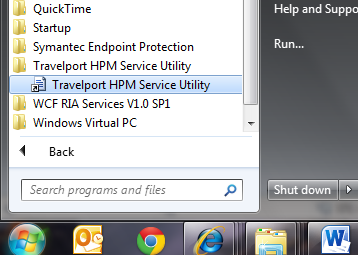
7. After successfull installation of the HPM Service Utility, Select the Start Menu Button, then select the All Programs selection.
Select the "Travelport HPM Service Utiltiy" menu, the menu is expaned with a short-cut to the HPM Service Utility. Select the
short-cut "Travelport HPM Service Utility". A user account control will prompt the user to givepermission for the HPM
Service Utility ot make changes, select Yes.
|
8. Select "Run HPM Config".

|
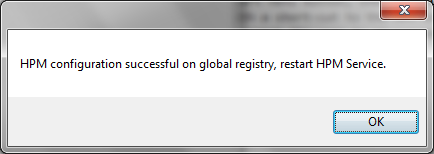
9. Upon successful configuration, you will see the following message box. If it fails you will see a message box error. Close HPM Service Utility.
|
10. After successfull execution of the HPM Service Utility, restart the HPM Service. The HPM Service is running with other system windows services.
|
|
Download Now
|